For Admins
Importing Past LinkedIn Shares - Ambo Docs
Import an advocate's past LinkedIn shares into Ambo to pull analytics for posts made outside of Ambo.
Share import lets you bring an advocate’s past LinkedIn shares into Ambo. Once imported, Ambo fetches engagement analytics for those shares: impressions, reactions, comments, and clicks, so they appear alongside shares made through Ambo.
This is useful when an advocate was already active on LinkedIn before joining Ambo, or when they shared posts directly on LinkedIn outside of Ambo.
How to import shares for an advocate
- Go to Users and find the advocate.
- Open their action menu and click Import Past Shares.
- Upload the advocate’s
Shares.csvfile exported from LinkedIn. - Review the shares that appear. Deselect any you don’t want to import.
- Click Import.
Ambo begins fetching analytics for the imported shares in the background. The Import Status column in the Users table shows progress.
Getting the LinkedIn archive
The advocate needs to download their data from LinkedIn and send you the Shares.csv file.
Steps for the advocate
-
Select Request archive to request a complete data export.
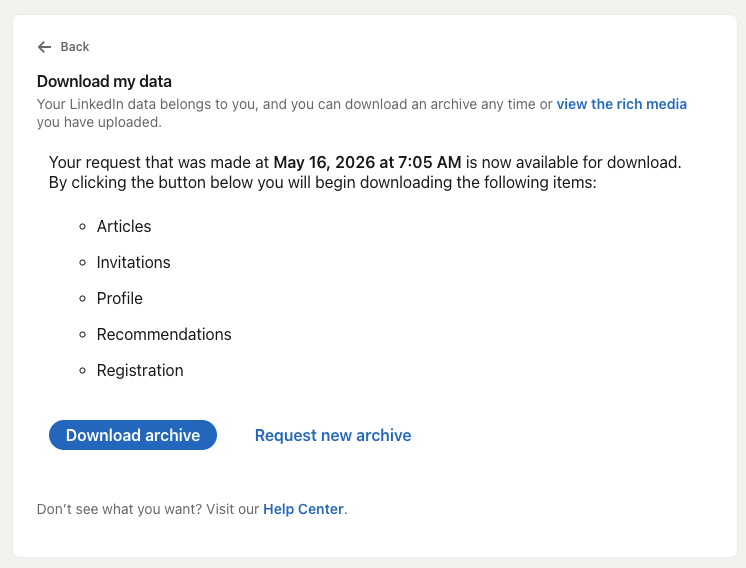
-
LinkedIn sends an email when the archive is ready (usually within a few minutes to a few hours).
-
Download the archive, unzip it, and locate the
Shares.csvfile inside. -
Send that file to the admin.
What gets imported
Ambo reads three columns from Shares.csv: the share date, share link, and post commentary. Shares without text content are skipped automatically. Only shares from the past 1 year are included, with a maximum limit of 100 shares.
You can deselect individual shares before importing if you only want a subset.
Analytics after import
Ambo fetches LinkedIn engagement data for each imported share after the import completes. The analytics appear in the Analytics section alongside data from Ambo-originated shares.
Note: Analytics are only fetched if the advocate’s LinkedIn account is connected to Ambo. If they haven’t connected yet, import the shares after they connect so analytics can be retrieved. Go to Managing Users for details on user account setup.